 By Kevin Ramirez
Our Editorial Research & Methodology
The Frustration of the Silent Smart Home
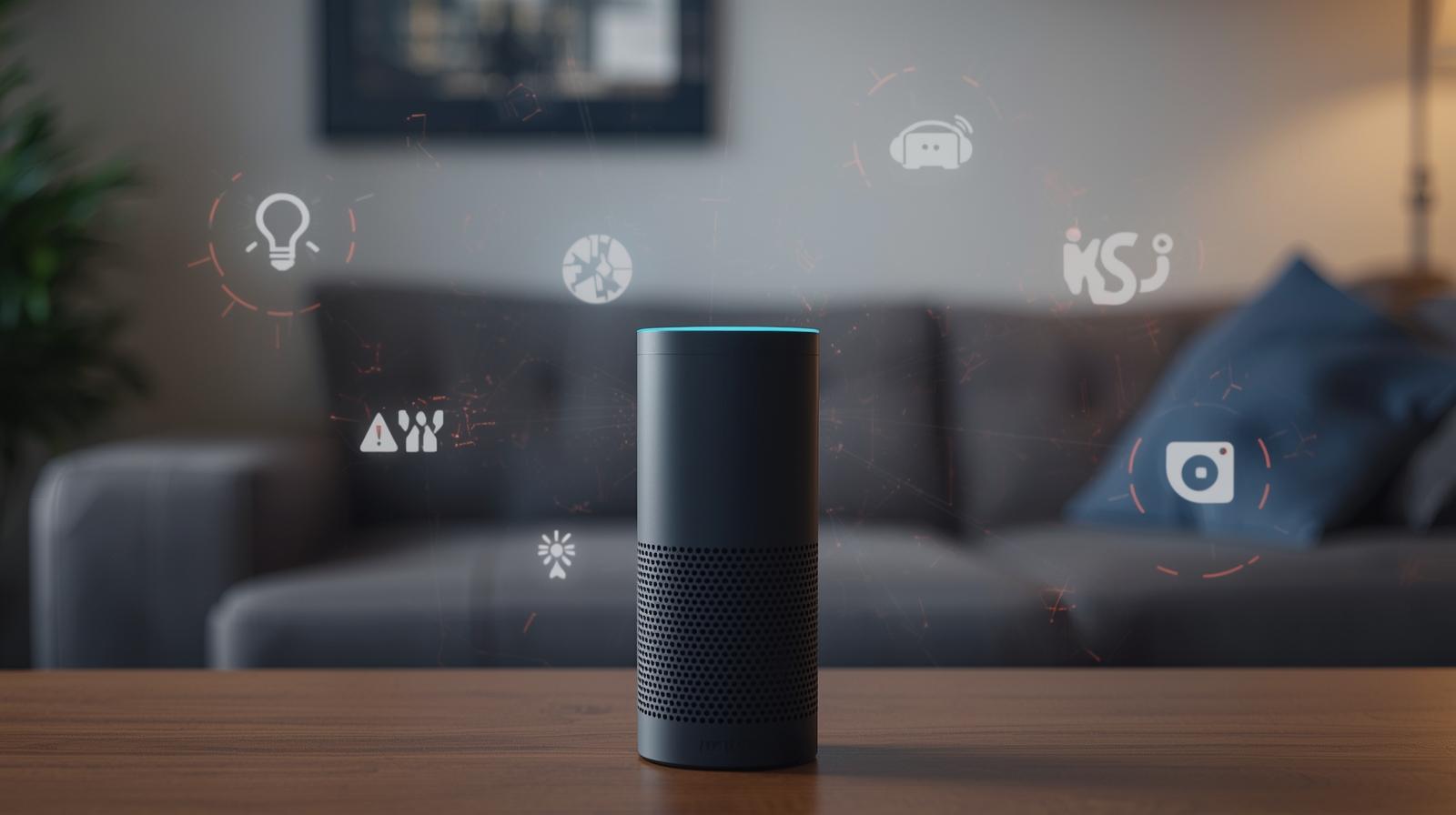
You walk into the room, ask Alexa to turn on the lights, and... nothing. Or worse, she tells you she cannot find the device you have been using for three years. It is a special kind of modern annoyance. In my experience, when Alexa stops detecting a device, it is rarely a sign that your hardware is broken. Usually, it is a simple communication breakdown between your router, the Amazon cloud, and the device itself.
By early 2026, smart home tech has become more stable thanks to the Matter protocol, but we still deal with legacy Wi-Fi issues and the occasional software glitch. If you are staring at a 'Device Unresponsive' message, do not throw your Echo out the window just yet. Let us walk through the actual fixes that work, starting from the easiest and moving into the deep-level networking tweaks.
The 30-Second Reset (The Stuff You Probably Skipped)
I know, I know. You have heard 'turn it off and on again' a thousand times. But here is the thing: smart devices often get stuck in a 'zombie state' where they are powered on but their network stack has crashed. A simple power cycle forces the device to request a new IP address from your router.
Unplug the smart device. Unplug your Echo. Wait exactly 30 seconds. Plug the Echo in first, let it fully boot, and then plug in your smart device. This sequence ensures the 'controller' (Alexa) is ready and waiting when the 'client' (the bulb or plug) starts looking for a connection.
The 2.4GHz vs. 5GHz Trap
Even in 2026, most smart home devices—especially cheaper bulbs and plugs—only speak 2.4GHz Wi-Fi. Your fancy new Wi-Fi 7 router likely uses a feature called 'Smart Connect' or 'Band Steering' that lumps all frequencies into one name. While this is great for your phone, it is a nightmare for a smart plug that cannot understand a 5GHz signal.
🏆 Our Top Picks
Amazon Echo (4th Gen) with Premium Sound
This is the gold standard for Alexa hubs because it includes a built-in Zigbee hub and acts as a Matter/Thread Border Router. It is essential for users who want to move away from flaky Wi-Fi-only devices and build a more stable mesh network.
Check Price on Amazon →TP-Link Kasa Matter Smart Plug (KP125M)
One of the most reliable plugs on the market thanks to Matter support, which allows for local control without relying on the cloud. It is perfect for those who want a 'set it and forget it' experience, though it does require a Matter-compatible hub for full functionality.
Check Price on Amazon →Philips Hue Smart Bridge
While many bulbs now connect via Bluetooth, the Hue Bridge remains the most stable way to manage smart lighting. It offloads the traffic from your Wi-Fi to a dedicated Zigbee channel, preventing the 'Alexa not detecting device' error caused by router congestion.
Check Price on Amazon →Eero Pro 6E Mesh Wi-Fi System
A massive cause of Alexa issues is poor Wi-Fi coverage. The Eero Pro 6E provides a stable backbone for hundreds of devices and includes a built-in Zigbee and Thread hub, making it the ultimate foundation for a modern smart home.
Check Price on Amazon →If Alexa cannot see a new device during setup, your phone is likely connected to the 5GHz band, while the device is trying to find the 2.4GHz band. They are on the same network, but they are effectively in different rooms. Try moving to the far edge of your house where the 5GHz signal drops off. Your phone will switch to 2.4GHz, and suddenly, the Alexa app will 'see' the device.
Check for Network Isolation
What most people miss is a router setting called 'AP Isolation' or 'Guest Network Isolation.' If you put your smart devices on a Guest Network for security, make sure the 'Allow guests to see each other' box is checked. If it is not, Alexa is essentially wearing a blindfold; she is on the network, but the router is preventing her from talking to anything else on that same network.
Matter and Thread: The New Standard's Growing Pains
If you are using newer Matter-enabled devices, the troubleshooting steps change. Matter relies on 'Thread,' a mesh networking protocol that does not use your Wi-Fi for everything. If Alexa is not detecting a Matter device, the issue is often the 'Thread Border Router.'
Your Echo (4th Gen or newer) or an Eero router usually acts as this border router. If that specific device is offline or has a pending firmware update, your entire Matter mesh collapses. Check the Alexa app under 'Devices' and then 'Echo & Alexa' to ensure your hub is 'Online.' If it shows 'Update Available,' do that immediately. Matter is incredibly sensitive to version mismatches.
The 'Ghost Device' Problem
Sometimes Alexa cannot detect a device because she thinks it is already there. I have seen this happen after a power outage. The device gets a new IP address, but Alexa is still trying to talk to the old one. Go into the Alexa app, find the device, and 'Trash' it. Then, put the device back into pairing mode (usually by holding a button until it flashes) and ask, 'Alexa, discover my devices.'
Skill Issues: It Is Usually the Software
For brands like TP-Link, Govee, or Philips Hue, Alexa does not talk to the device directly; she talks to the manufacturer's cloud. This is handled by 'Skills.' If the link between Amazon and the manufacturer breaks, the device disappears.
Do not just disable the skill. Follow this specific order: Disable the skill > Log out of the manufacturer's app > Log back in > Re-enable the skill in Alexa. This forces a fresh OAuth token exchange, which fixes 90% of 'Device Unresponsive' errors that are not related to Wi-Fi.
Interference and Physical Barriers
We often forget that smart home signals are just radio waves. If your smart plug is tucked behind a heavy metal filing cabinet or right next to a microwave, the signal will be garbage. In my experience, even a large mirror can reflect signals away from your Echo. If a device is constantly dropping off, try moving it just six inches in any direction. You would be surprised how much a small physical shift can change the signal-to-noise ratio.
Comparing Connection Types
Not all connections are created equal. If you are tired of devices disappearing, it helps to know which technology you are actually using. Here is a quick breakdown of why your device might be failing based on its 'language.'
| Connection Type | Reliability | Common Failure Point | Best For |
|---|---|---|---|
| Wi-Fi (2.4GHz) | Moderate | Router Congestion | Budget devices, single-room setups |
| Zigbee | High | Hub Distance | Whole-home lighting, sensors |
| Matter (over Wi-Fi) | High | Firmware Mismatches | Modern, cross-platform ecosystems |
| Matter (over Thread) | Very High | Border Router Offline | Low-power sensors, locks, and plugs |
| Bluetooth | Low | Range (30ft max) | Single bulbs, portable speakers |
Advanced Troubleshooting: IP Conflicts
If you have 50+ devices and things are disappearing, you might be out of IP addresses. Most consumer routers are set to a 'DHCP Range' that might only allow 50 or 100 devices. Once that limit is hit, the next device that tries to connect gets rejected.
Log into your router settings (usually 192.168.1.1) and look for the DHCP settings. Expand the range to 254. While you are there, I highly recommend 'Address Reservation' for your most important devices, like your Echo hubs. This gives them a permanent 'seat' at the table so they never have to fight for an IP address again.
When the Hardware is Actually Dead
How do you know if the device is actually broken? Try to control it through its native app (like the Kasa or Hue app). If it works there but not in Alexa, the device is fine—the problem is the cloud link. If it does not work in its own app, and a factory reset (usually holding the power button for 10-15 seconds) does not make the lights flash, the internal Wi-Fi chip has likely fried. It happens, especially with cheaper no-name brands from overseas.
Final Checklist for Success
- Ensure your phone and Alexa are on the same Wi-Fi network during setup.
- Check if the device requires a specific 'Hub' (like Philips Hue or Aqara).
- Verify that 'Discovery Mode' is active on the device (look for blinking lights).
- Update the Alexa app in the App Store or Google Play Store.
- Check the Amazon AWS Service Health Dashboard to see if Alexa's servers are down globally.
Smart homes are supposed to make life easier, not give you a headache. Most of the time, Alexa not detecting a device is just a temporary 'brain fog' caused by a router hiccup or a stale software token. Follow these steps, and you will usually be back to voice-controlling your world in under ten minutes.
Frequently Asked Questions
Why does Alexa say 'device is unresponsive' but it works in the original app?
This usually means the 'Skill' link between Amazon and the manufacturer has expired. Disable and re-enable the skill in the Alexa app to refresh the connection.
Does Alexa need a hub to detect all devices?
Not all, but many do. Devices using Zigbee or certain Matter-over-Thread protocols require a hub like the Echo (4th Gen) or a dedicated brand hub to communicate with Alexa.
Can a weak Wi-Fi signal prevent discovery?
Absolutely. If a device has less than two bars of signal, it may fail the 'handshake' process during discovery even if it appears to be powered on.