 By Kevin Ramirez
Our Editorial Research & Methodology
Why Your Nest Thermostat is Giving You the Silent Treatment
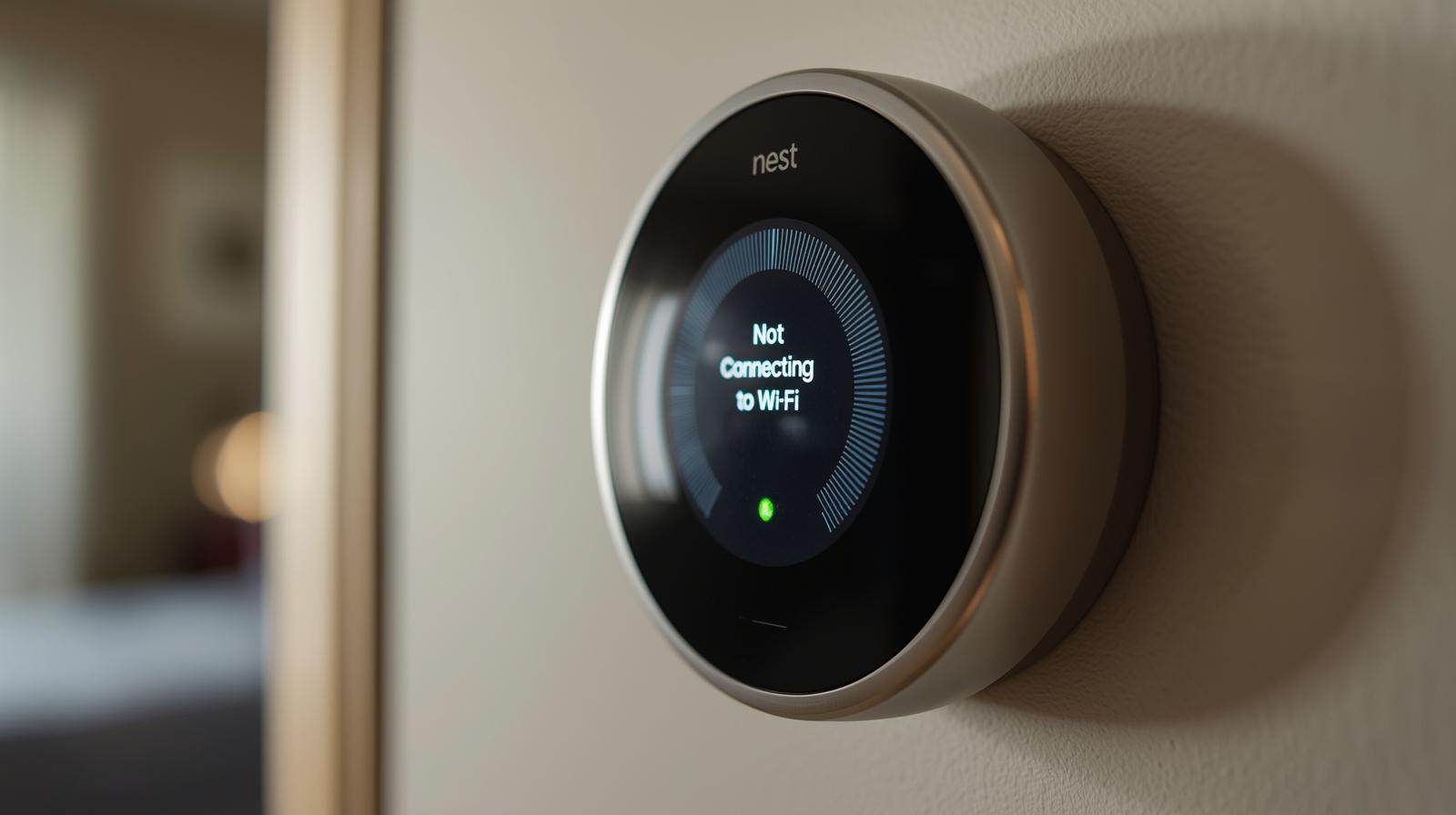
It is a cold Tuesday morning in February 2026, and you wake up to a chilly house. You check your phone, and there it is: the dreaded 'Offline' status in the Google Home app. Your Nest thermostat has decided to quit talking to your WiFi. In my experience, this usually happens at the worst possible time. But do not panic. Most of the time, this is not a hardware death sentence. It is usually just a communication breakdown between your thermostat, your router, and the cloud.
Smart home tech has come a long way, but WiFi remains the weakest link. Whether you are using the latest WiFi 7 mesh system or an older router, interference and power fluctuations can still knock a Nest offline. Here is the thing: Nest devices are picky. They need a consistent stream of low-voltage power and a very specific type of handshake with your router. If either of those is slightly off, the connection drops. Let us walk through how to get your home back to the right temperature.
The Quick Fixes: Start Here
Before we start tearing wires out of the wall, let us try the 'turn it off and back on again' approach. It sounds basic, but it works more often than you would think. Restarting the thermostat clears the temporary cache and forces a fresh search for local networks.
🏆 Our Top Picks
Google Nest Power Connector
The essential fix for homes without a C-wire. This simple adapter installs at your furnace and provides consistent power to your Nest, preventing WiFi drops caused by low battery. It is a much cheaper alternative to hiring an electrician to pull new wires.
Check Price on Amazon →TP-Link Deco BE85 Mesh WiFi 7 System
A top-tier WiFi 7 mesh system that provides incredible coverage and stability for smart homes. It handles hundreds of devices simultaneously, ensuring your Nest never loses its connection due to network congestion. It also includes built-in Matter support.
Check Price on Amazon →Google Nest Learning Thermostat (4th Gen)
The latest iteration of the iconic thermostat, featuring improved WiFi hardware and native Matter support. It is designed to be more resilient to interference and offers better power management than previous generations.
Check Price on Amazon →Netgear Nighthawk RS700S WiFi 7 Router
For those who prefer a single powerful router over mesh, the RS700S offers massive range and a dedicated IoT band. This allows you to isolate your Nest and other smart devices on their own frequency for maximum reliability.
Check Price on Amazon →- Restart the Nest: Pull the display off the wall for 10 seconds and plug it back in, or go to Settings > Reset > Restart.
- Check the App: Sometimes the thermostat is actually connected, but the app is lagging. Force close the Google Home app and reopen it.
- The Router Reboot: Unplug your router for 30 seconds. In 2026, many routers have automated self-healing, but a manual power cycle is still the gold standard for clearing IP conflicts.
Check Your Battery Level
What most people miss is that the Nest WiFi chip is the first thing to shut down when the battery is low. If your thermostat does not have a 'C-wire' (common wire), it steals power from your heating and cooling lines. If the battery drops below 3.6V, it will disconnect from WiFi to save enough juice to keep your furnace running. You can check this in the Technical Info menu under 'Power.'
The Power Problem: The Hidden Culprit
If your Nest keeps dropping the connection every few days, you likely have a power issue, not a WiFi issue. Without a C-wire, the Nest can only charge when the system is running. In mild weather, when your AC or heater is not kicking on often, the battery drains. This is a classic design hurdle that still trips up homeowners today.
| Power Component | Ideal Reading | What it Means |
|---|---|---|
| Battery Voltage | 3.7V to 3.9V | The WiFi chip has enough power to stay active. |
| Voc | 29V to 42V | The open-circuit voltage from your HVAC system. |
| Vin | 29V to 42V | The voltage while the system is actually running. |
| Iin | 20mA to 40mA | The current flowing to your device. |
If your battery is consistently below 3.6V, you need a permanent power solution. You can either have an HVAC pro pull a new C-wire, or you can install a Nest Power Connector. It is a small puck that sits at your furnace and mimics a C-wire. It is a lifesaver for older homes without modern wiring.
Network Settings: Making Your Router Play Nice
By 2026, most of us are running dual-band or tri-band routers. While 5GHz and 6GHz are faster, the 2.4GHz band is better at penetrating walls. Nest thermostats generally prefer 2.4GHz because of the range. If your router uses 'Smart Connect' (merging all bands into one name), the Nest might get confused and try to jump to a 5GHz signal that is too weak.
Separate Your WiFi Bands
In my experience, giving your 2.4GHz and 5GHz bands different names solves 80 percent of smart home connection issues. Call one 'Home_WiFi_2.4' and the other 'Home_WiFi_5.' Connect your Nest specifically to the 2.4GHz band. This prevents the device from 'bouncing' between frequencies, which often causes the offline status.
Check for Interference
Your kitchen is a war zone for WiFi signals. If your router is on the other side of a microwave, a refrigerator, or a thick brick wall, the Nest will struggle. Even other smart devices using the Matter or Thread protocols can occasionally cause congestion if they are all fighting for the same channel. Try changing your router's 2.4GHz channel to 1, 6, or 11. These are the only non-overlapping channels and are usually the most stable.
The Dreaded W5 Error Code
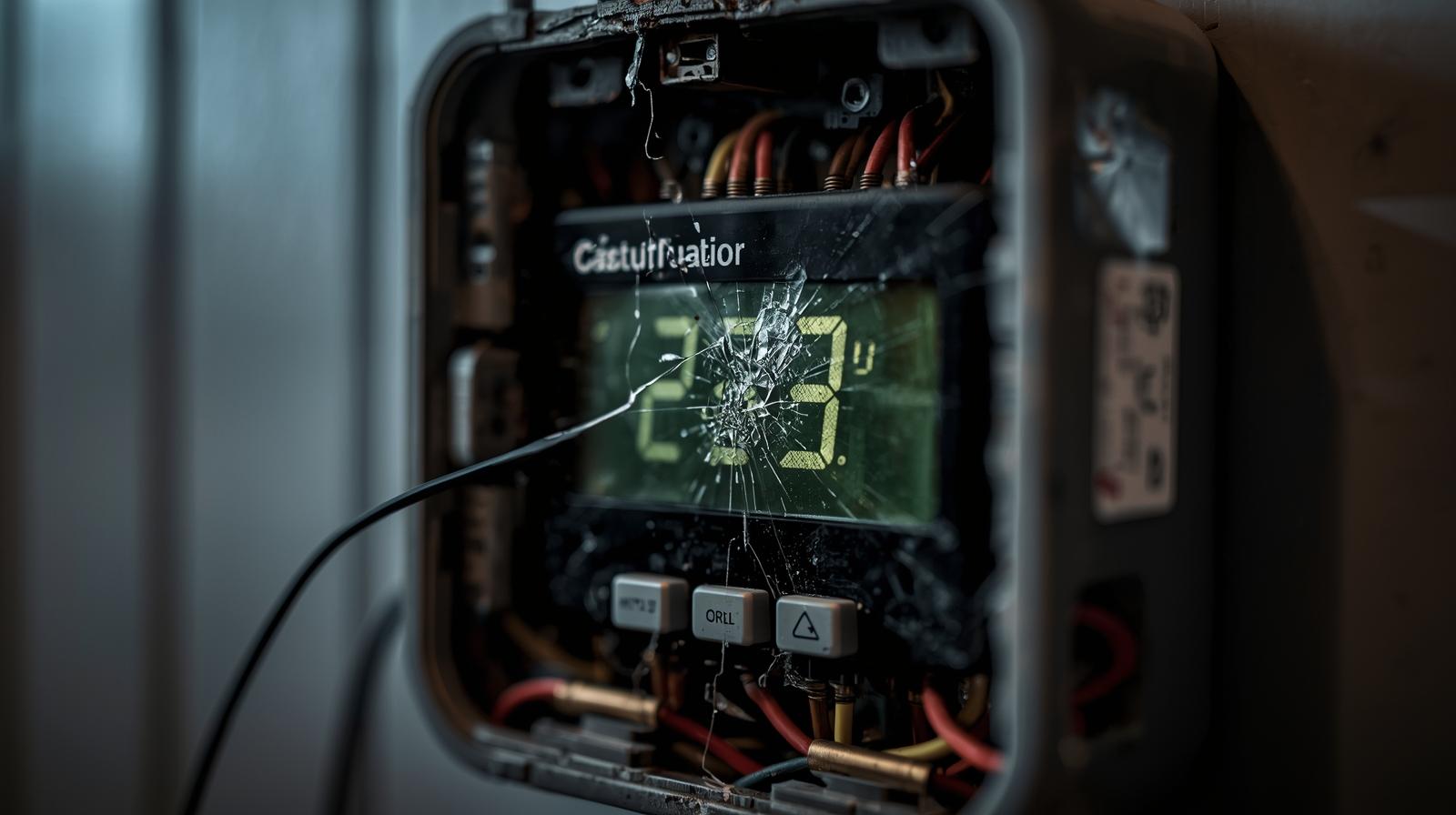
If you see a 'W5' error on your screen, I have some bad news. This is a specific hardware code that means the WiFi chip inside the Nest has failed. This was a known issue on some older Nest Learning Thermostat models. While Google has improved the hardware in recent years, it can still happen due to power surges or manufacturing defects.
If you see W5, no amount of restarting will fix it. You will need to contact Google support. If you are under warranty, they are usually very good about sending a replacement. If you are out of warranty, you might be able to find a replacement 'backplate' or display unit online, but usually, it is time for an upgrade.
Advanced Troubleshooting: Static IPs and DNS
If you are a power user, you might want to look at how your router assigns addresses. Sometimes, a router will try to give the Nest an IP address that is already being used by your laptop or smart fridge. This is called an IP conflict.
- Assign a Static IP: Go into your router settings and reserve a specific IP address for your Nest's MAC address. This ensures the Nest always has its own 'seat at the table.'
- Update DNS Settings: Sometimes the issue is not the connection to the router, but the router's connection to the internet. Try switching your router's DNS to Google's Public DNS (8.8.8.8 and 8.8.4.4). It is often faster and more reliable than your ISP's default settings.
IPv6 vs. IPv4
In 2026, IPv6 is more common than ever. However, some older Nest firmware versions still struggle with IPv6 implementation. If you have tried everything else, try disabling IPv6 on your router temporarily to see if the Nest reconnects. If it does, you know where the bottleneck is.
When to Factory Reset
A factory reset is the 'nuclear option.' It wipes all your schedules and learning data. Only do this if you have confirmed the power is good and the router is working, but the Nest still refuses to see any networks. To do this, go to Settings > Reset > All Settings. You will have to set up the thermostat from scratch in the Google Home app, just like it was new out of the box.
The 'Matter' Factor
Since we are living in the era of Matter 2.0, ensure your Nest is updated to the latest firmware. Matter-enabled devices are designed to be more resilient, but they require a 'Thread Border Router' (like a Nest Hub or a newer Eero) to function at their best. If your Nest is part of a Matter fabric, ensure your border router is online and within range.
Final Thoughts on Staying Connected
A smart thermostat is only smart if it is connected. Most Nest WiFi issues boil down to either a lack of a C-wire or a router that is trying to be too clever with band steering. Fix the power, simplify the network, and your Nest should stay online for years to come. If you have gone through all these steps and the screen is still showing that 'Offline' icon, it is likely a hardware failure. But before you buy a new one, check your voltages one last time. It is almost always the power.
Frequently Asked Questions
Can I use my Nest without WiFi?
Yes, your Nest will still control your heating and cooling like a traditional thermostat, but you will lose remote control, weather updates, and automatic scheduling features.
Why does my Nest say 'Low Battery' even when it is wired?
This usually means your system is not providing enough power to the Nest. You likely need a C-wire or a Nest Power Connector to provide a constant charge.
Does the Nest support 5GHz WiFi?
Most newer Nest models (Learning Thermostat 3rd Gen and later) support 5GHz, but 2.4GHz is generally recommended for better range and stability through walls.